
Software Download and Update
QuickChiller™ QC3 Blast Chiller Software
Step-by-Step Instructions
IMPORTANT: Read all of the instructions for your software version before attempting a software update. If you need assistance, please call the Alto-Shaam service department at 1-800-558-8744.
Failure to follow the installation instructions exactly as outlined on this page may result in an inoperable chiller and a service call.
IMPORTANT: Make sure you have a blank USB drive.
On the Computer:
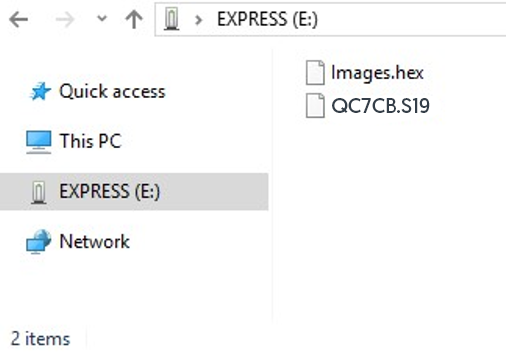
Step 1. Click on the download link for the latest QuickChiller software. Open the .zip folder, and copy all files to the top level of the USB drive. Eject the USB drive from your computer after the files have been saved.
On the Chiller:
Before you begin: Record the chiller serial number, model, and voltage. Navigate to the Service screen, record the Interface Board (IB), and Control Board (CB) software versions.
Step 2. Touch the utilities icon. The utilities screen displays.
Step 3. Touch the upload/download icon. The upload/download screen displays.
Step 4. Plug the USB drive into the USB port.
IMPORTANT: Do not remove the USB drive during the update process.
Step 5. Touch the download new software icon for the full update.
- To update only the interface board, touch the interface board icon.
- To update only the control board, touch the control board icon.
Step 6. Remove the USB drive.
Step 7. On the Service screen, verify your software is the correct version.
Resources
View resources:
For additional resources to help navigate the software and applicable product changes, please click the following links.
